
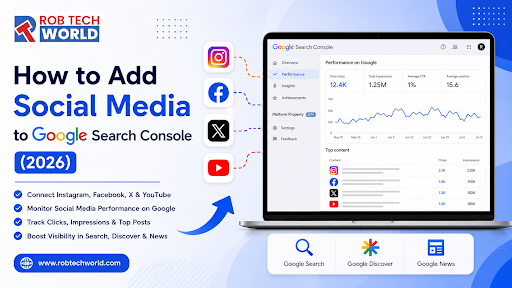
Google Search Console is no longer limited to tracking website pages. In July 2026, Google introduced Platform Properties, a new property type that allows creators, businesses, publishers and marketing agencies to monitor how selected social media content performs on Google.
Therefore, learning How to Add Social Media to Google Search Console has become important for brands that depend on Instagram posts, YouTube videos, TikTok content and X posts for online visibility.
The new feature allows eligible users to connect supported social accounts and view information such as Google Search impressions, clicks, click-through rates, average positions, search queries and high-performing posts.
At Rob Tech World, we see this update as an important step toward combining website SEO, social media SEO, creator analytics and AI search visibility within a broader organic marketing strategy.
However, Platform Properties should not be confused with normal social media analytics. Google Search Console only reports how social content performs on Google Search, Discover and Google News. It does not replace Instagram Insights, TikTok Analytics, YouTube Studio or X Analytics.
What Is Google Search Console Social Media Integration (2026)?
Google Search Console Social Media Integration (2026) refers to the introduction of Platform Properties for supported social and video platforms.
A Platform Property represents an account or channel hosted on a third-party platform instead of a website owned and hosted by you.
For example, a Platform Property may represent:
- An Instagram profile
- A TikTok account
- An X account
- A YouTube channel
Google officially announced Platform Properties on July 7, 2026. The update allows creators, including those without a separate website, to understand how their social and video posts are discovered through Google Search and Discover.
Before this update, Search Console primarily focused on websites using Domain Properties or URL-Prefix Properties. Now, users may also be able to add a supported social account as an individual property.
This development reflects how modern search behaviour has changed. People increasingly discover videos, social posts, product demonstrations, personal experiences and creator content directly within Google results.
Those unfamiliar with crawling, indexing and search performance may first read this guide to search engine basics.
Google Search Console Adds Reports for Social Posts
The keyword Google Search Console Adds Reports For Social Posts describes one of the most important search analytics developments of 2026.
Once a supported account is connected, Google may provide access to three main reporting areas.
1. Performance Report
The Performance report can show:
- Total clicks
- Total impressions
- Average click-through rate
- Average search position
- Search queries
- Individual posts or content URLs
- Countries
- Devices
- Search appearance
- Google Search traffic
- Discover traffic, when available
- Google News traffic, when available
This report helps identify which social posts are bringing users from Google.
2. Insights Report
The Insights report offers an easier overview of:
- Recent traffic changes
- Top-performing posts
- Trending content
- Search queries
- Content discovery patterns
- Audience growth opportunities
Google states that the top Insights summary may include clicks from several Google surfaces. However, some detailed cards may focus specifically on web search, meaning the totals in separate sections may not always match.
3. Achievements
The Achievements section highlights growth milestones, such as reaching a new number of Google Search clicks during the previous 28 days.
These achievements can help creators and marketing teams monitor progress without manually comparing every date range.
What Are Google Search Console Platform Properties?
Google Search Console Platform Properties are separate properties created for eligible social media profiles or video channels.
Each connected account is treated independently.
For example, when a business has one Instagram account, two YouTube channels and one TikTok account, each account or channel should be added as a separate Platform Property.
Google currently describes two possible verification methods:
- Direct authorisation through the relevant social platform.
- Automated connection through an existing website property when Google can identify the relationship.
The exact verification process can vary according to the platform, account configuration, rollout availability and permissions.
Which Social Media Platforms Are Supported?
At launch, Google supports four platforms.
| Platform | Platform Property Support | What It Measures |
| Yes | Instagram content appearing on Google | |
| TikTok | Yes | TikTok content appearing on Google |
| X | Yes | X posts and account content appearing on Google |
| YouTube | Yes | YouTube videos and channel content appearing on Google |
| No direct support at launch | Not available as a selectable Platform Property | |
| No direct support at launch | Not available as a selectable Platform Property | |
| No direct support at launch | Not available as a selectable Platform Property |
The supported list may expand in the future. As of July 2026, Google’s official documentation lists Instagram, TikTok, X and YouTube.
Platform Properties vs Social Channels in Search Console
It is important to understand the difference between Platform Properties and the earlier experimental feature called social channels in Search Console.
Social Channel Insights
Social Channel Insights are automatically identified social accounts that Google believes are related to a verified website.
This experimental feature may display social channels connected with a site inside the Insights report.
However:
- It is not available for every website.
- Users cannot always select their own channels.
- Users cannot manually add specific channels through this section.
- Channels can be removed from Insights.
- Google determines which related channels appear.
Google describes Social Channel Insights as experimental.
Platform Properties
Platform Properties are created separately.
They require account ownership verification and provide dedicated reporting for a particular Instagram, TikTok, X or YouTube account.
Therefore, Platform Properties provide greater control than automatically detected social channel insights.
Benefits of Connecting Social Media Accounts with Google Search Console
When you Connect Social Media Accounts with Google Search Console, you can understand how people discover your content outside the social platform itself.
Find the Search Queries Driving Visibility
Search Console may show the queries that caused your social content to appear in Google.
For example, an Instagram reel about home workouts may appear for searches such as:
- Beginner home workout routine
- Exercises without gym equipment
- Full-body workout at home
- Quick fitness routine
This information can help improve future captions, video titles, spoken content, hashtags and content topics.
Identify Social Posts That Rank on Google
The Performance report can help identify which posts earn the most:
- Impressions
- Clicks
- Search visibility
- Average positions
- Discover exposure
Instead of guessing which content is search-friendly, creators can use actual Google performance data.
Measure Content Beyond Followers and Likes
Platform analytics usually focus on views, reach, likes, comments, watch time and followers.
Search Console provides another perspective by showing how content performs when people search on Google.
This is especially useful for educational, product-led and evergreen social content.
Discover New Content Opportunities
Queries with high impressions but low clicks may indicate that the content is visible but not attractive enough.
Creators can then improve:
- Titles
- Captions
- Thumbnails
- Video introductions
- Descriptions
- Topic relevance
- Calls to action
Build a Connected SEO Strategy
Social data should not be studied separately from website SEO.
For example, a high-performing Instagram topic can become:
- A detailed website article
- A YouTube video
- A TikTok series
- A product guide
- A comparison page
- An FAQ page
Businesses can use the SEO checklist for small businesses in 2026 to connect these social opportunities with their website strategy.
Requirements Before Adding a Social Account
Before following the Platform Properties setup guide, confirm the following requirements.
You Need a Google Account
The Google account used to access Search Console should belong to the business, creator or authorised team member.
Avoid setting up important properties under the personal account of a temporary employee or outside freelancer.
You Need Access to the Social Account
You must be able to sign in to the Instagram, TikTok, X or YouTube account.
For business accounts, confirm that you have the necessary owner or administrator permissions.
The Feature Must Be Available in Your Account
Google is gradually rolling out Platform Properties.
Therefore, some users may not immediately see Instagram, TikTok, X or YouTube in the Add Property screen.
The absence of these options does not necessarily indicate an account problem. It may simply mean the rollout has not reached that Search Console account yet.
Use the Correct Social Account
Verify that you are authorising the intended profile.
Businesses managing several pages, channels or client accounts should check the username and account details before approving the connection.
How to Add Social Media to Google Search Console Step by Step
The following process explains How to Add Social Media to Google Search Console through Platform Properties.
Step 1: Open Google Search Console
Sign in to Google Search Console with the Google account that should own or manage the property.
You do not necessarily need a website property before adding a Platform Property. Google introduced this feature for website owners as well as creators who may not have their own websites.
Step 2: Open the Property Selector
Click the property selector in the upper-left section of Search Console.
This menu displays all website and platform properties available to your Google account.
Step 3: Select “Add Property”
Scroll to the bottom of the property list and select Add Property.
The setup screen may display options for website properties and supported platform accounts.
Step 4: Select the Social Platform
Select the relevant platform:
- TikTok
- X
- YouTube
When the platform options are not visible, the feature may still be rolling out to your account.
Step 5: Authorise the Connection
Click Add beside the required platform and follow the on-screen instructions.
Search Console may ask you to:
- Sign in to the platform
- Select an account or channel
- Review the requested permissions
- Approve the connection
- Confirm ownership
Google says Platform Properties can be verified through direct platform login or an automated connection with an existing website property.
Step 6: Confirm Ownership
After successful verification, Search Console should display a confirmation message.
Select Go to Property to open the newly created Platform Property.
Step 7: Allow Data to Process
Performance information may not appear immediately.
Google states that new Platform Properties can take a few days to collect and process data.
Only data collected after setup may initially appear. Therefore, a newly created property may have empty or partial charts.
Step 8: Repeat the Process for Other Accounts
Each account or channel must be added separately.
For example:
- Brand Instagram account
- Founder Instagram account
- Main YouTube channel
- Secondary YouTube channel
- TikTok account
- X account
Google allows users to manage multiple properties through the property selector.
How to Connect Google Search Console with Instagram
The process for How to Connect Google Search Console with Instagram is straightforward when Platform Properties are available.
- Open Google Search Console.
- Open the property selector.
- Select Add Property.
- Find Instagram under Platform Properties.
- Click Add.
- Sign in to the correct Instagram account.
- Review the authorisation request.
- Approve the connection.
- Wait for verification.
- Open the new Instagram property.
Once connected, the property may display Instagram posts, reels or stories that receive visibility through Google.
Google states that an Instagram story can count as an impression when it appears in Google results. A click may be counted when a user selects that story from the search result.
Search Console does not show the complete performance of the story inside Instagram. Continue using Instagram Insights for on-platform reach, views, replies and engagement.
How to Add YouTube to Google Search Console
To create a YouTube Platform Property:
- Sign in to Search Console.
- Select Add Property.
- Choose YouTube.
- Sign in to the Google account that owns or manages the channel.
- Select the correct YouTube channel.
- Approve the requested connection.
- Complete ownership verification.
- Open the property and allow time for data collection.
The resulting reports focus on how YouTube videos perform across Google Search, Discover or Google News when applicable.
They do not replace YouTube Studio.
Use YouTube Studio to monitor:
- YouTube Search traffic
- Browse features
- Suggested videos
- Subscribers
- Watch time
- Audience retention
- Engagement
- Revenue
Use Search Console to monitor the external Google Search visibility of YouTube content.
How to Add TikTok to Google Search Console
To connect TikTok:
- Open Search Console.
- Select Add Property.
- Choose TikTok.
- Sign in to the authorised TikTok account.
- Review the connection.
- Complete verification.
- Open the new property.
- Wait several days for the first report.
Search Console will not show the total number of times a TikTok video appeared within the TikTok app.
It focuses on impressions and interactions generated through Google surfaces.
How to Add X to Google Search Console
To connect an X account:
- Open the Search Console property selector.
- Select Add Property.
- Choose X.
- Sign in to the relevant X account.
- Approve authorisation.
- Confirm the account.
- Complete setup.
- Review reports after data appears.
The property can help identify which X posts receive visibility in Google and which queries generate that visibility.
Metrics Available in the Google Search Console Social Performance Dashboard
The Google Search Console social performance dashboard may contain the following metrics.
Total Clicks
Clicks show how many times users clicked your social content from eligible Google surfaces.
For video content, Google may count a click even when the video opens within a Google viewer rather than taking the user directly to the social platform.
Total Impressions
Impressions show how often your content appeared in eligible Google results.
An impression does not mean the user watched the complete video or read the full post.
Average Click-Through Rate
CTR is calculated by dividing clicks by impressions.
A high CTR may suggest that the title, preview, thumbnail or content format closely matches the searcher’s needs.
Average Position
Average position represents the average highest position of the content for eligible Google results.
It does not represent a position inside Instagram, TikTok, YouTube or X.
Queries
The query report shows search terms connected to content visibility.
Some low-volume queries may not be displayed because Search Console applies privacy filtering and data limitations.
Content or Posts
This dimension identifies the social posts, videos or content URLs receiving Google visibility.
Countries and Devices
These filters can help creators understand where users are located and whether they are searching through mobile, desktop or tablet devices.
Discover and Google News
Separate reports may appear when the connected social content receives sufficient traffic from Discover or Google News.
When no eligible traffic exists, these reports may not be displayed.
How to Use the Search Console Social Keyword Report
A Search Console social keyword report can support content planning in several ways.
Find High-Impression, Low-Click Queries
These queries show that Google is already associating your content with the subject.
However, users may not be selecting it.
Improve the:
- Headline
- Video title
- Thumbnail
- Opening sentence
- Caption
- Content preview
- Search intent match
Find Queries With Strong CTR
Queries with strong CTR indicate that the content is attracting relevant users.
Create additional posts covering:
- Related questions
- Beginner guides
- Comparisons
- Mistakes
- Checklists
- Costs
- Benefits
- Step-by-step processes
Find Topics Suitable for Website Content
When a social post performs well, create a comprehensive webpage covering the same subject.
This approach can help businesses build topical authority across both websites and social platforms.
For AI-focused organic strategies, review this guide to the top AI SEO companies in India.
Compare Branded and Non-Branded Discovery
Branded queries include a company, product or creator name.
Non-branded queries represent broader discovery.
A strong strategy should aim to increase both:
- Branded visibility for recognition
- Non-branded visibility for audience growth
How to Improve Instagram SEO Using Search Console
After connecting Instagram, use query and post-level data to improve future content.
Add Search Topics Naturally
Include relevant phrases naturally within:
- Instagram captions
- Reel titles
- Spoken dialogue
- On-screen text
- Alt text
- Profile information
Avoid inserting the same keyword repeatedly.
Answer a Clear User Question
Instagram posts that answer specific questions may have stronger evergreen search potential.
Examples include:
- How to choose a home gym machine
- How much does a dental implant cost?
- How to clean an air conditioner
- Best season to visit Manali
- How to prepare for an SSC exam
Use Descriptive Captions
A caption should explain the subject rather than relying entirely on hashtags.
Write for the user first and include important terms where they improve clarity.
Analyse Posts With Strong Impressions
Review the structure, format and subject of posts receiving consistent Google impressions.
Create related content instead of copying the same post.
How to Optimize YouTube Videos With Google Search Console
Search Console data can support YouTube optimisation by revealing how videos appear on Google.
Use the information to improve:
- Video titles
- Descriptions
- Chapters
- Thumbnails
- Spoken introductions
- Transcripts
- Supporting website articles
- Related video topics
For example, when a video appears for a query but receives a low CTR, the thumbnail or title may not communicate the answer clearly.
When a query produces clicks but average position remains low, the topic may deserve a more comprehensive follow-up video.
Search Console should be used alongside YouTube Studio rather than as a replacement.
How to Improve TikTok SEO With Search Console
TikTok content can appear in Google results when Google can discover and understand the post.
Use Search Console information to:
- Identify searchable content topics
- Improve the first spoken sentence
- Add clear on-screen text
- Write descriptive captions
- Create content around real questions
- Publish updated versions of useful topics
- Connect high-performing videos with website articles
- Improve visual and audio clarity
Short videos should answer the main question quickly.
Avoid long introductions that delay the useful information.
Does Connecting Social Media Improve SEO?
Connecting an account does not directly improve rankings.
Google clearly states that adding a website or Platform Property does not affect how that property performs in Search. The connection only enables owners to monitor performance.
However, the data can indirectly support better decisions.
For example, it can help you:
- Find relevant queries
- Improve content titles
- Create more useful posts
- identify content gaps
- Compare performance
- Build website articles from successful social topics
- Understand Google visibility
Better content may improve performance, but the act of connecting the property is not a ranking factor.
Google and AI Guidelines for Social Content
AI can assist with:
- Topic research
- Caption ideas
- Video outlines
- Transcript editing
- Title variations
- Content summaries
- Query clustering
- Performance analysis
However, AI should not be used to mass-produce repetitive posts solely for manipulating Google rankings.
Google recommends creating original, helpful, people-first content that demonstrates experience, expertise, authoritativeness and trustworthiness.
Google also states that using AI is not automatically against its guidelines. The problem occurs when automation is primarily used to manipulate rankings or generate low-value content at scale.
For better AI-era visibility, creators should:
- Share genuine first-hand experience.
- Provide original examples.
- Check AI-generated facts.
- Avoid copied captions.
- Use accurate titles.
- Answer the query directly.
- Add expert review where required.
- Update outdated information.
- Disclose automation when readers would reasonably expect it.
- Avoid publishing unedited AI output.
Businesses interested in AI visibility can also review the guide on Search Generative AI performance reports in Search Console.
Common Limitations of Platform Properties
Platform Properties are useful, but they have clear limitations.
They Do Not Measure Complete Social Performance
Search Console does not report:
- Total Instagram reach
- Total TikTok views
- YouTube subscriber growth
- X engagement
- Platform-specific followers
- Social advertising results
- Direct messages
- Comments
- Complete watch time
Use each platform’s own analytics for this information.
Only Four Platforms Are Supported
Facebook, LinkedIn, Pinterest and several other platforms cannot currently be selected as direct Platform Properties.
The Feature Is Still Rolling Out
Some Search Console users may not see the feature immediately.
Data Can Take Several Days
New properties may initially display empty charts.
Historical Data May Be Limited
A newly created property may only show data from the date collection began.
Not Every Query Is Reported
Google may hide some queries for privacy or processing reasons.
Discover and News Reports Are Conditional
These reports only appear when eligible traffic exists.
Why Is My Social Media Data Not Showing?
Several issues may prevent reports from displaying data.
The Property Was Added Recently
Wait a few days for Google to collect and process data.
The Content Has Not Appeared on Google
A connected account may have no reportable impressions when its posts have not appeared in eligible Google results.
The Feature Is Still Rolling Out
Your Search Console account may not yet have full Platform Property access.
The Wrong Social Account Was Connected
Confirm the account name and profile URL.
Authorisation Expired
Google periodically checks ownership.
When an external login expires or access is removed, reporting access may pause until you verify the connection again.
Google states that after re-verification, users regain access to the same report without waiting for all data to accumulate again.
The Selected Date Range Is Too Short
The default reporting period is 28 days. Try a longer period when enough data is available.
Filters Are Hiding Data
Remove query, country, device, page or search appearance filters.
How to Compare Website and Social Media Performance
Search Console treats a website and each social account as separate properties.
You can switch between properties using the property selector.
For a detailed comparison:
- Select the website property.
- Export the required performance report.
- Select the Instagram, TikTok, X or YouTube property.
- Export the same date range.
- Combine the reports in Google Sheets, Excel or a dashboard.
- Compare clicks, impressions, CTR, position, queries and content.
Google allows report data to be exported in formats such as:
- Google Sheets
- Microsoft Excel
- CSV
Exports are generally limited to the report data and rows currently available through the interface.
For website conversions and visitor behaviour, combine Search Console with Google Analytics. Search Console focuses on activity before the user reaches a website, while Analytics measures what the visitor does after arriving.
Google Search Console for Brands and Agencies
Platform Properties can be valuable for brands managing several content channels.
An agency may create separate properties for:
- A client’s website
- The client’s Instagram profile
- The client’s YouTube channel
- The client’s TikTok account
- The client’s X account
Google Search Console supports owners, full users and restricted users.
Owners have full control and can add or remove users. Full users can view all data and perform selected actions. Restricted users have more limited viewing access.
Rob Tech World recommends that the business owner retain verified ownership while agencies and team members receive only the access level required for their work.
Businesses comparing service providers may find these resources useful:
Build Experience, Trust and Transparency
Search performance tools provide useful data, but businesses should also evaluate the practical experience and credibility of the people managing their marketing.
You can review the Rob Tech World portfolio and explore published SEO success stories to understand how search strategies are applied to real projects.
Independent profiles and customer feedback are also available through:
Final Thoughts
The introduction of Platform Properties changes how creators and businesses measure organic visibility.
By learning How to Add Social Media to Google Search Console, you can understand which Instagram posts, TikTok videos, X posts and YouTube videos are being discovered through Google.
However, connecting an account is only the beginning.
The real value comes from studying queries, identifying useful topics, improving content quality and creating original information that satisfies the user’s intent.
Platform Properties do not replace social platform analytics, and they do not automatically improve rankings. They provide search performance information that can guide smarter content decisions.
Rob Tech World recommends combining Platform Properties with website SEO, social analytics, Google Analytics, user feedback and people-first content for a more complete digital visibility strategy.
Frequently Asked Questions
1. How do I connect Instagram to Google Search Console?
Open Search Console, choose Add Property, select Instagram and complete the authorisation process using the Instagram account you own or manage. The feature is gradually rolling out, so Instagram may not appear in every account immediately.
2. How do I connect YouTube to Google Search Console?
Open the property selector, select Add Property, choose YouTube and authorise the correct channel. Once verified, allow several days for initial data processing.
3. How do I add TikTok to Google Search Console?
Select Add Property, choose TikTok, sign in to the relevant account and follow the verification instructions. TikTok must appear as an available platform in your Search Console account.
4. Can I connect my X (Twitter) account to Google Search Console?
Yes. X is one of the four platforms officially supported for Platform Properties at launch.
5. What are Platform Properties in Google Search Console?
Platform Properties are Search Console properties created for supported third-party social accounts or channels. They show how content from those accounts performs on Google.
6. Which social media platforms are supported in Google Search Console?
Instagram, TikTok, X and YouTube are currently supported. Facebook, LinkedIn and Pinterest are not listed as direct Platform Properties at launch.
7. How do I verify my social media account in Google Search Console?
Verification may use direct platform login or an automated connection through an existing website property. Follow the instructions shown during setup.
8. What are Google Search Console Platform Properties used for?
They are used to monitor clicks, impressions, CTR, average position, queries and individual social posts appearing across eligible Google surfaces.
9. What is Google Search Console social media integration?
It is the ability to connect supported social and video accounts to Search Console and monitor their organic performance on Google.
10. How to add social media to Google Search Console?
Open the property selector, click Add Property, select a supported platform, authorise the account and complete ownership verification.
11. Can Google Search Console track Instagram?
It can track how eligible Instagram content performs on Google. It does not track the complete performance of posts within the Instagram application.
12. Can Google Search Console track YouTube videos?
Yes, it can report how YouTube videos perform across eligible Google Search surfaces. YouTube Studio remains necessary for complete on-platform analytics.
13. Does Google Search Console support TikTok?
Yes. TikTok is officially supported as a Platform Property.
14. Can I connect Facebook to Google Search Console?
Facebook is not currently listed as a supported Platform Property. Continue using Facebook Insights and website analytics to evaluate Facebook activity.
15. Can I connect LinkedIn to Google Search Console?
LinkedIn is not included in the initial Platform Properties list. It cannot currently be added through the same direct setup used for Instagram, TikTok, X and YouTube.
16. How do I monitor social media performance in Google Search Console?
Open the relevant Platform Property and review its Performance, Insights and Achievements reports.
17. Can I track keyword rankings for Instagram posts?
You can see Google queries and average positions associated with eligible Instagram content. These are Google positions, not Instagram search rankings.
18. Can I see search queries for my social media posts?
Yes. Search Console can show queries that led users to supported social content, although privacy filters may prevent every query from appearing.
19. Can I track Google Discover traffic for social media content?
Yes, when the content receives eligible Discover traffic. The Discover report may not appear when no reportable traffic exists.
20. How do I improve Instagram SEO using Google Search Console?
Study high-impression queries, top-performing posts and CTR. Use the findings to improve captions, titles, on-screen text, spoken content and future topic selection.
21. How do I optimize YouTube videos with Google Search Console?
Use Google query data to improve titles, descriptions, thumbnails, transcripts and future video topics. Combine Search Console information with YouTube Studio analytics.
22. How do I improve TikTok SEO with Search Console?
Identify the Google queries connected with TikTok visibility. Then improve opening statements, spoken keywords, captions, text overlays and topic relevance.
23. Is Google Search Console useful for content creators?
Yes. It shows how creator content is discovered through Google, even when the creator does not operate a separate website.
24. Is Google Search Console useful for influencers?
Yes. Influencers can identify searchable topics, top-performing posts, and Google queries related to their content.
25. Is Google Search Console useful for brands?
Yes. Brands can monitor organic Google visibility across supported social properties and compare it with website performance.
26. Is Google Search Console useful for agencies?
Yes. Agencies can manage separate website and platform properties for clients, provided they receive the appropriate access and authorization.
27. Can I connect multiple social media accounts to Search Console?
Yes. Each profile or channel should be added as a separate platform property.
28. What metrics are available for Platform Properties?
Available metrics include clicks, impressions, CTR and average position. Reports may also include queries, individual posts, countries, devices and eligible Google surfaces.
29. How long does it take for social media data to appear in Search Console?
Google says it can take a few days after setup for data to appear.
30. Why is my social media data not showing in Search Console?
The property may be new, the account may not have received Google visibility, authorisation may have expired, filters may be active or the rollout may not be complete.
31. Can I export social media performance reports from Search Console?
Yes. Google confirms that Platform Property performance data can be exported. Common report formats include Google Sheets, Excel and CSV.
32. Can I compare website and social media performance in Search Console?
You can switch between properties and export comparable date ranges. A combined native report may not always be available, so spreadsheets or dashboards may be required.
33. Does connecting social media improve SEO?
No. Adding a property does not change rankings. It only allows you to monitor performance.
34. Can Google Search Console help increase social media visibility?
It can help indirectly by showing useful queries, strong content and low-CTR opportunities. Applying those insights may improve future content performance.
35. How does Google Search Console help creators grow?
It helps creators understand what people search for, which posts attract clicks and which topics have increasing visibility.
36. Is Google Search Console useful for influencers?
Yes. It provides an additional source of organic discovery data beyond follower counts, likes and platform reach.
37. What is the difference between Website Properties and Platform Properties?
Website Properties represent domains or URL prefixes owned by a site operator. Platform Properties represent supported accounts hosted on platforms such as Instagram, TikTok, X and YouTube.
38. How do I verify Platform Properties in Google Search Console?
Select the relevant platform and complete the on-screen authorisation process. Verification may occur through platform login or a recognised connection with an existing site.
39. Can I share access to my Platform Property?
Search Console properties generally support owners, full users and restricted users. Owners can add users through Settings > Users and Permissions when that option is available for the property.
40. How do I remove a connected social media account from Search Console?
Open the property, go to Settings and remove the property from your account. You may also need to revoke the platform authorisation when you want to prevent automatic re-verification. Removing a property does not remove its content from Google.
41. What is Google Search Console social analytics?
It refers to Search Console data showing how supported social content performs on Google, including impressions, clicks, queries and positions.
42. What is Google Search Console creator analytics?
It is the use of Platform Properties, Insights and Performance reports to understand how creator content is discovered through Google.
43. How do I monitor Instagram search performance?
Use the Instagram Platform Property for Google performance and Instagram Insights for performance inside Instagram. The two reports measure different environments.
44. How do I monitor YouTube search performance?
Use Search Console to monitor YouTube videos appearing on Google. Use YouTube Studio to monitor searches and discovery occurring inside YouTube.
45. How do I monitor TikTok search performance?
Use Search Console for Google visibility and TikTok Analytics for performance within TikTok.
46. How can I measure Google Search visibility for social media?
Connect each supported account as a Platform Property and monitor impressions, clicks, CTR, average position, posts and queries.
47. What is a Search Console social keyword report?
It is the query data associated with a Platform Property. It shows terms that caused social content to appear or receive clicks through Google.
48. What is included in a Platform Properties setup guide?
A proper guide includes account preparation, platform selection, authorisation, ownership verification, data collection, reporting and troubleshooting.
49. What is the Google Search Console social performance dashboard?
It is the collection of Performance, Insights and Achievements reports available for a verified Platform Property.
50. Where can I find a complete guide to connecting social media with Google Search Console?
Follow this article’s setup process: open Search Console, select Add Property, choose Instagram, TikTok, X or YouTube, verify ownership and wait a few days for performance data.