







Google Search Console is an important tool for website owners, digital marketers, and SEO professionals who want to monitor their website’s performance in Google Search. It provides valuable insights into clicks, impressions, click-through rates (CTR), average positions, and search queries. However, when the Google Search Console Performance Report date picker stops working, analyzing website performance over a specific period can become challenging.
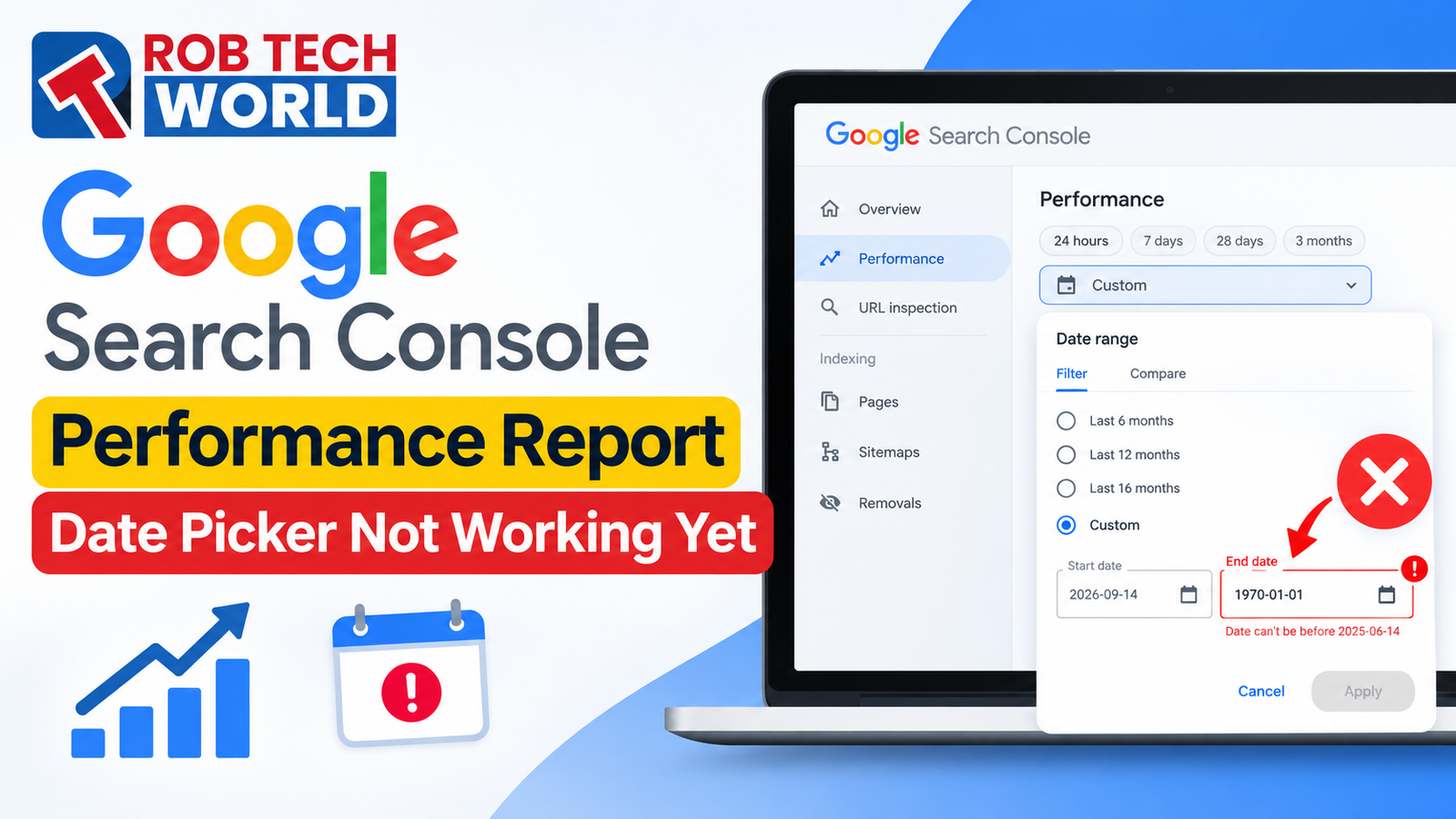
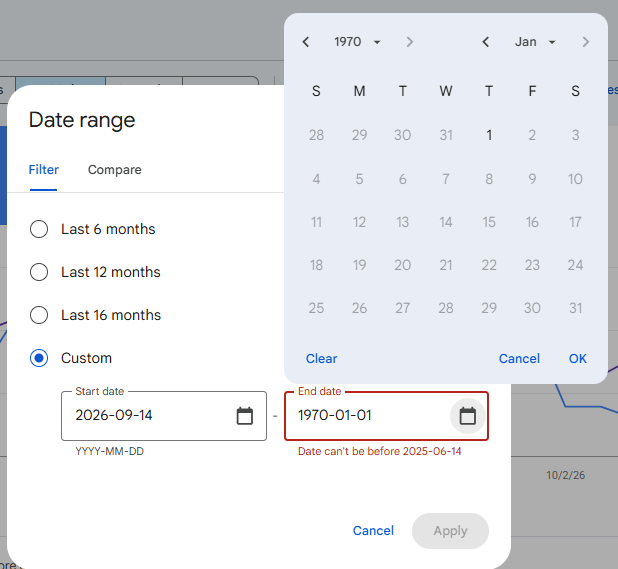
In October 2026, users reported problems with the custom date selector in Google Search Console. The issue reportedly caused incorrect dates, including dates from 1969 and 1970, and prevented users from selecting their preferred reporting periods. Although a fix was reported on October 13, some users continued experiencing issues with custom comparison dates on October 14.
For SEO professionals and website owners, understanding this issue and knowing the available troubleshooting options can help maintain a consistent performance monitoring process.
What Is the Google Search Console Date Picker Issue?
The date picker in Google Search Console allows users to select a specific date range for reviewing search performance. It is particularly useful when comparing website traffic, keyword rankings, and impressions across different periods.
Recently, users reported that the custom date selector displayed incorrect dates and prevented them from selecting valid dates. In some cases, the interface showed an error indicating that the selected date could not be after December 31, 1969.
The reported problem primarily affected custom date selection, while some predefined date ranges continued to work. This made it difficult for SEO professionals to generate custom reports and compare website performance accurately.
According to Search Engine Land, Google reported a fix on October 13, 2026. However, some users continued reporting problems with custom comparison dates. You can read the report on Search Engine Land.
Why Is the Google Search Console Performance Report Date Picker Not Working?
The exact technical cause of the issue has not been publicly confirmed. However, several factors may explain date picker problems in web applications.
1. Temporary Google Search Console Bug
The issue may originate from the Search Console interface itself. When a reporting feature displays incorrect dates or rejects valid selections, users may be experiencing a platform-side problem rather than an issue with their website.
2. Browser Cache and Cookies
Sometimes, outdated cached files or browser data can interfere with how a web application loads. Although this is not a confirmed cause of the reported Google Search Console issue, testing another browser can help identify local problems.
3. Custom Date Range or Comparison Errors
The problem may affect custom date selection differently from predefined reporting periods. For example, a user might be able to view the last 28 days but encounter an error when selecting specific dates or comparing two periods.
How to Fix the Google Search Console Date Picker Issue?
If your Google Search Console date picker is still not working, try the following steps.
1. Use Predefined Date Ranges
Open Google Search Console and navigate to the Performance Report. Select an available predefined range, such as the last 7 days, 28 days, or 3 months.
This can help you continue monitoring clicks, impressions, CTR, and average positions while the custom date selector is unavailable.
2. Refresh the Performance Report
Reload the Search Console page and reopen the report. If the issue continues, sign out of your Google account and sign in again.
3. Try Another Browser
Open Google Search Console in an updated browser or an incognito window. If the date picker works correctly, check whether browser extensions, cached files, or cookies are contributing to the problem.
4. Test Custom Dates and Comparison Options Separately
First, try selecting a custom date range. Then test the comparison feature separately. This can help determine whether the problem affects all custom selections or only comparison reporting.
5. Check Google’s Official Updates
If the problem persists across different browsers, check the Google Search Status Dashboard for relevant service updates. You can also submit feedback through Google Search Console to report the issue.
Does the Date Picker Issue Affect Google Rankings?
A date picker problem does not automatically mean that your website has lost rankings, organic traffic, or indexed pages.
The issue concerns the reporting interface and its date selection functionality. It does not, by itself, indicate that Google has stopped crawling your website or changed your search rankings.
SEO professionals should continue monitoring available data and use Google Analytics 4 (GA4) to review organic traffic trends where appropriate. If a genuine decline in traffic or rankings appears, investigate it separately before drawing conclusions.
How SEO Professionals Can Monitor Website Performance During the Issue?
While the date picker problem remains unresolved for some users, SEO professionals can continue their regular monitoring activities.
- Use available date filters: Review performance data through predefined reporting periods.
- Monitor Google Analytics 4: Check organic sessions and traffic trends using available reports.
- Maintain SEO reports: Record reporting dates and performance metrics to maintain consistency.
- Avoid premature conclusions: Do not interpret a broken date selector as evidence of a ranking decline.
- Recheck the feature regularly: Test custom date ranges periodically and monitor official updates.
These practices can help website owners maintain their SEO reporting workflow without making unnecessary changes to their websites.
Conclusion
The Google Search Console Performance Report date picker issue has created difficulties for users who rely on custom date ranges to analyze search performance. Although a fix was reported on October 13, 2026, some users continued experiencing problems with custom comparison dates on October 14.
If your date picker is still not working, try predefined date ranges, test another browser, and check Google’s official updates. Continue monitoring available performance data and avoid confusing reporting issues with actual changes in website rankings.
Rob Tech World shares practical insights, SEO updates, and digital marketing guidance to help website owners and professionals understand technical issues and improve their online performance.
Frequently Asked Questions (FAQs)
1. Why is the Google Search Console Performance Report date picker not working?
The date picker has reportedly experienced a technical issue affecting custom date selection. Some users encountered incorrect dates or errors when choosing a reporting period. The exact technical cause has not been publicly confirmed.
2. Is the Google Search Console date picker issue fixed?
A fix was reported on October 13, 2026, but some users continued reporting issues with custom comparison dates on October 14. Check the affected feature and official updates for the latest status.
3. Why does Google Search Console show dates from 1969 or 1970?
Some users reported that the custom date selector displayed dates from 1969 or 1970 instead of the intended reporting period. This appears to be related to the reported date selection problem.
4. Can I check website performance while the date picker is not working?
Yes. You can use available predefined date ranges in Google Search Console and review organic traffic trends in Google Analytics 4 while custom date selection is unavailable.
5. Does the date picker issue affect website rankings?
No direct ranking impact has been established from the reporting issue itself. A malfunctioning date selector does not automatically mean your website has lost rankings, traffic, or indexed pages.
6. How can I report the Google Search Console date picker problem?
You can submit feedback through Google Search Console and check the Google Search Status Dashboard for relevant service updates.
7. What should SEO professionals do if the issue continues?
SEO professionals should use available reporting filters, monitor traffic through other analytics tools, document reporting periods, and recheck the custom date selector periodically.